


info@kps.com.vn
+84 903 709 019

While using Windows 10 operating system, if you encounter 100% Disk Usage error, here is how to help you fix that problem.
Press Alt + F4 to close all running programs and then restart the computer. This method is simple but surprisingly effective. If there is no progress, please try the following methods.

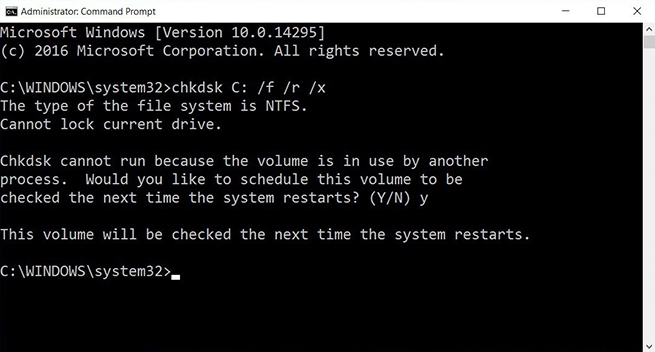
Use CheckDisk
- Step 1: Select Command Prompt with Admin rights.
- Step 2: Enter the command chkdsk /f /r C: and ENTER.
- Step 3: A message appears asking to restart the computer, click Y and select Enter.
The computer will be restarted and CheckDisk will scan your entire hard drive. This process will help your hard drive run smoother.
Disable Windows Services
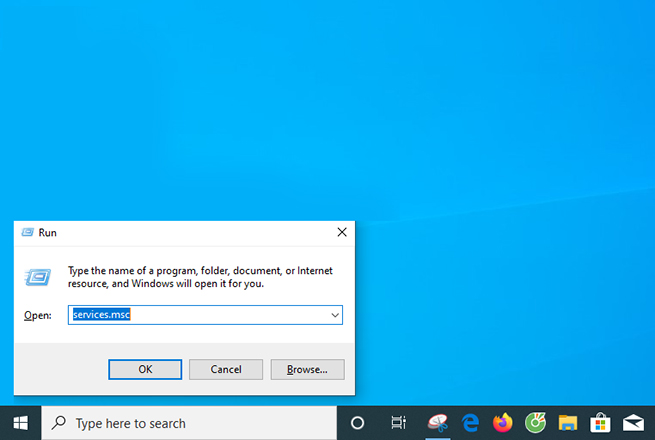
Disable Windows Services is also one of the effective ways to fix the 100% Disk Usage error.
- Step 1: Open the Run dialog box by pressing Windows + R, type services.msc and Enter
- Step 2: In the Services section, select Superfetch, right-click and select Stop.
- Step 3: Do the same with the 2 services Background Intelligent Transfer Service and Windows Search.
Disable Tips About Windows
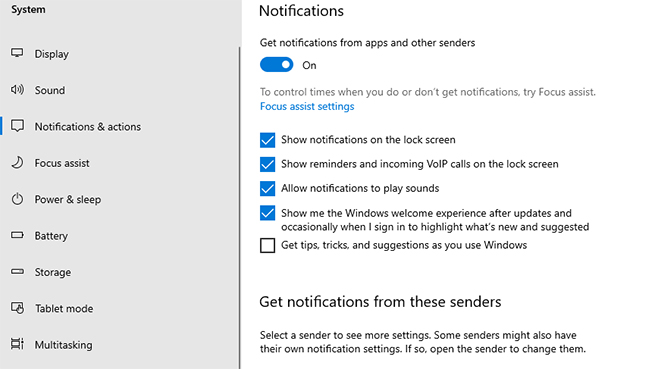
Many people said that right after disabling this feature, their computer got rid of the 100% Disk Usage state. You can disable this feature if you don't use it by:
- Go to Settings/ System/ Notification & actions
- Find Get tips, tricks, and suggestions as you use Windows and turn it to OFF.
Uninstall Antivirus Windows Defender
There are two ways to uninstall this software:
- Install another software to replace it.
- Use the software to uninstall it called: Windows Defender Uninstaller
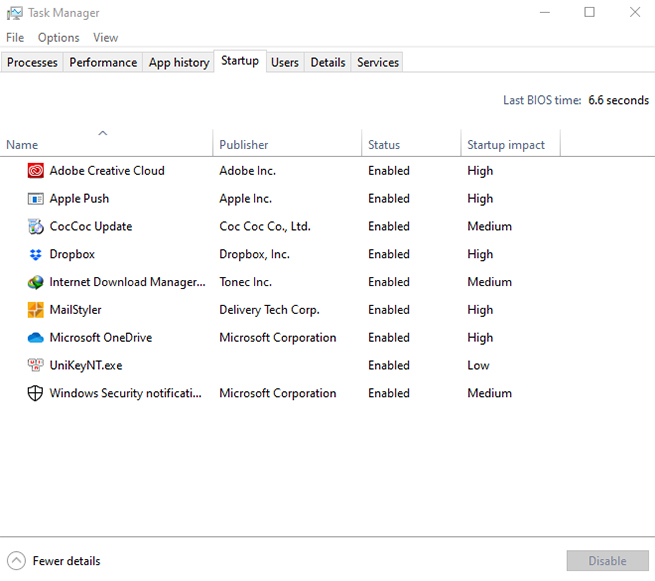
Turn off programs that start with the system
In Startup of Task Manager, turn off unnecessary programs. Note that you must not turn off the driver.
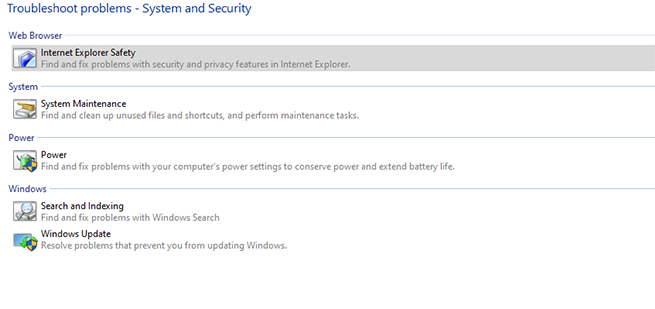
Troubleshooting
Go to Control Panel, type the keyword Troubleshooting and select System and Security.
Click on System Maintenance to perform the disk scan.
Select Next/Try Troubleshooting as an administrator and wait for the system to process and then click close.
Disable Windows SmartScreen
To turn off this feature, select Control Panel/ Security and Maintenance/ Change Windows SmartScreen settings/ Don't do anything.
Use CCleaner junk cleaning software
This is a completely free software, its task is to scan junk files generated by the system. If you use this software 5 to 7 times/day, your computer will run very smoothly.
Set up more virtual RAM for your computer
One of the main reasons leading to the Full Disk Windows 10 100% is due to lack of RAM. Therefore, if you do not have the financial conditions, you can install virtual RAM according to the following steps:
- Go to This PC, select Properties, select Advanced system settings.
- Select Advanced/ Settings/ Advanced/ Program/ Change..
The window appears, uncheck the line Automatically manage paging file size for all drives.
Then select drive C as the drive containing Windows. You can choose another drive but usually drive C.
Next, click on Custom Size with two options: Initial Size (1.5 times the actual RAM capacity) and Maximum size (3 times the actual RAM capacity).
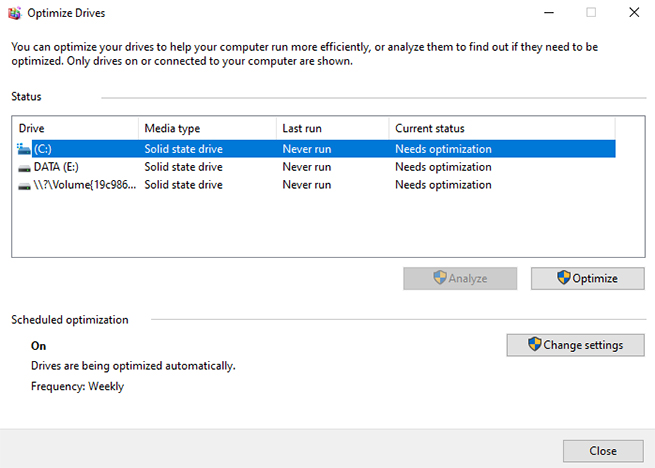
Regularly defragment the hard drive
In this step, you can use disk defragmentation software or built-in tools on Windows. Go to This PC/right-click on any partition/Properties/Tools.
Upgrade to the latest Windows version
Remaining errors will be fixed with each update. Therefore, to fix the Full Disk 100% Win 10 error, you should regularly update the operating system for the smoothest computer operation.
Other news

Setup Guide for Myipcam92MP from iCantek
IP camera setup guide for myIPCam92MP series, cloud viewer, PoE converter
View detail

Explore the cameras combine with the digital identification software such as face, license plate, ...
View detail

Bosch IVA feature Setup Instruction
Programming guide for integrated IVA features on Bosch intelligent IP camera
View detail

DIP7000 Recorder Setup instruction
Setup instructions for DIP7000 recorder series from Bosch
View detail

DIP3000 Recorder Setup instruction
Setup instructions for DIP3000 recorder series from Bosch
View detail

IVA Advanced feature Guide from Bosch
Intelligent Video Analysis (IVA) is a built-in feature on Bosch IP camera
View detail
ABOUT KPS


Regulations and policies
Warranty and return policy Delivery, payment, and feedback Giấy phép kinh doanhContact Information
HO CHI MINH OFFICE
10–12 Dong Van Cong Street, Cat Lai Ward, Ho Chi Minh City.
+842839976099 / 903 709 019
info@kps.com.vn
www.kps.com.vn
Work time
Monday – Friday : 8:00 AM - 17:30 PM
Saturday - Sunday: Off
HA NOI OFFICE
22 Alley 168 Nguyen Xien, Khuong Dinh Ward, Hanoi City
+84 903 709 019
kpshn@kps.com.vn
www.kps.com.vn
Work time
Monday – Friday: 8:00 AM - 17:30 PM
Saturday - Sunday: Off
DA NANG OFFICE
490 Nguyen Tri Phuong, Hoa Cuong Ward, Da Nang City
+84 903 709 019
kpsdn@kps.com.vn
www.kps.com.vn
Work time
Monday – Friday: 8:00 AM - 17:30 PM
Saturday - Sunday: Off
CAN THO OFFICE
11/11 Tran Binh Trong, Ninh Kieu Ward, Ninh Kieu District, Can Tho City.
+84 090 709 019
kpsct@kps.com.vn
www.kps.com.vn
Work time
Monday – Friday: 8:00 AM - 17:30 PM
Saturday - Sunday: Off
SERVICE CENTER - WAREHOUSE
10–12 Dong Van Cong Street, Cat Lai Ward, Ho Chi Minh City.
+ 84 28 3997 0609
baohanh@kps.com.vn
www.kps.com.vn
Work time
Monday – Friday: 8:00 AM - 17:30 PM
Saturday - Sunday: Off
2010 © Bản quyền thuộc KPS
Online: 9 | Visitors Counter: 17270144
About | Recruitment | News | Contact Us


